Mobile App
Use your phone or tablet as a portable scanning, put-away, and picking device for warehouse operations.
All UsersThe ListerLeo mobile app is a native Flutter app for iOS and Android (bundle ID com.vendidit.listerleo). It talks to the same Laravel API as the desktop and uses BLoC for state management. State is preserved between sessions in secure storage and shared preferences.
Key Mobile Features
- Camera barcode scanning — Falls back to the phone's camera when a hardware scanner isn't connected (
BarcodeScannerScreenuses themobile_scannerpackage). - Hardware scanner support — Any USB / Bluetooth scanner that emulates a keyboard works through the
ScanInputFieldwidget. The widget has three keyboard modes (hidden / numeric / full) cycled by the on-screen keyboard button. - Photo capture — Take item photos directly with the phone's camera during the review and "No UPC" flows.
- Put-Away — Three modes: item to location, item to pallet, and pallet to location.
- Picking — Work through pick lists with the destination shown prominently and the scan confirming each item.
- Items List — Search and filter your inventory by status, vendor, location, warehouse, auction, and auction platform.
- Bluetooth / Network printer support — Connect a Bluetooth or networked thermal printer (ZPL or ESC/POS) directly from the app.
- Task assignments — Pick up and complete assignments handed out by the Master Controller; locked assignments force you onto the assigned tab.
- Mobile analytics — A small subset of the desktop analytics, accessed from the More tab.
Installing the Mobile App
Install the app from the iOS App Store or Google Play. Once installed, launch it and either log in or scan a login badge.
API Base URL
The default API base URL is https://listerleo.com/api. If you're running a self-hosted backend or testing against a local server, tap Server Settings on the login screen and enter the URL — it is persisted to secure storage, no rebuild needed. For Android emulators talking to a host machine, use http://10.0.2.2:8000/api.
Logging In on Mobile
All UsersThere are two ways to log in on the mobile app: email/password or login barcode (printed badge).
Email and Password
- Launch the ListerLeo app.
- Enter your email address and password.
- Tap Sign In. Auth posts to
POST /api/auth/loginand a Sanctum token is stored in secure storage.
Login Barcode (Faster)
If typing on a phone is inconvenient (especially with gloves in a warehouse), use the login barcode method. See Login Barcode below.
Sanctum tokens issued to the mobile app don't expire by default (config('sanctum.expiration') is null), so you stay signed in until you log out or the token is revoked.
Login Barcode
All UsersThe login barcode lets workers sign in by scanning a printed badge instead of typing an email and password. Each user has a permanent login_barcode value stored on their account — admins print it as a badge from the Users resource.
Generating a Login Badge
- An admin opens the Users resource in the Filament admin panel.
- For each user with a login barcode, the row exposes a Print Login Badge action (printer icon).
- Clicking it opens the hidden-iframe print flow that renders the badge via the desktop label-print route. API clients can render the same badge by posting to
POST /api/labels/login. - Changing a user's password auto-rotates their login barcode for security.
Logging In With a Badge
- On the mobile app's login screen, tap Scan Barcode to Login.
- Either scan the badge with a hardware scanner into the Scan Login Barcode input, or tap Open Camera Scanner to use the phone's camera.
- The scanned value is posted to
POST /api/auth/barcode-loginand a Sanctum token is returned.
Treat login badges as you would a physical key — anyone holding one can log in as that user. If a badge is lost, change the user's password to rotate their login barcode.
Scanning Items on Mobile
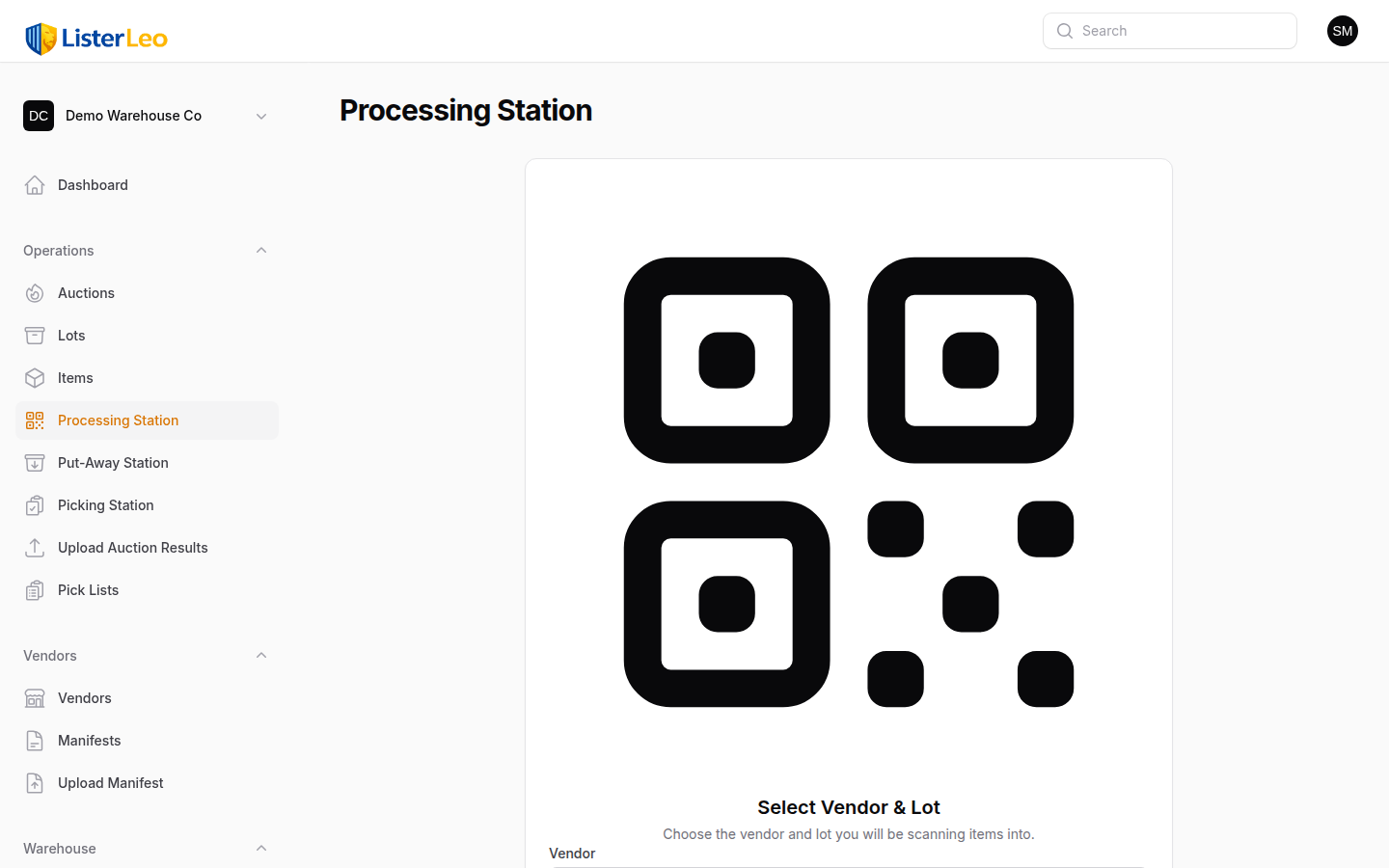
scannerThe mobile scanning flow mirrors the desktop Processing Station: pick a context, scan into a focused input, then review and save. A hardware (USB/Bluetooth keyboard-emulating) scanner is the fastest input — the camera scanner is the fallback when no hardware scanner is connected.
How to Scan
- Tap the Scan tab at the bottom of the home screen.
- On the Context Selection screen, pick an Auction (the vendor is derived from it) and a Lot mode: Manual Lot Control, Lot Per Item, or an existing lot. If the auction has
lot_per_itemset, the picker is locked. - On the scanning screen, either fire your hardware scanner into the focused input or tap Scan to open the camera scanner (
BarcodeScannerScreen). Tap the keyboard button to cycle between hidden, numeric, and full keyboard modes for manual typing. - If the barcode resolves via GlobalSKU, the review screen appears pre-filled. If it doesn't, tap No UPC - Take a Photo to send a photo for AI lookup instead.
- On the review screen, take photos with the camera, set the condition, edit fields as needed, and tap Confirm & Save (posts to
POST /api/scan). - If
force_putawayis in the resolved workflow steps, the Force Put-Away screen takes over next — see below.
Force Put-Away on Mobile
When the resolved workflow includes force_putaway, the app pushes the Force Put-Away screen after each save. It has two stages:
- Scan the printed label. The scanned value must match the saved item's serial number or original barcode.
- Scan the destination. Pallets, shelves, rows, or a brand-new label string are all accepted — new labels auto-create a Location.
The bottom of the screen has dedicated Scan (camera) and Numpad / Full Keyboard / Hide Keyboard buttons that act on whichever input is currently visible. Tap Skip in the app bar to bail out — the item stays saved, only the put-away placement is dropped.
Hold your phone about 6–8 inches from the barcode for best camera-scan results. Hardware scanners are still faster — pair a Bluetooth scanner via your phone's Bluetooth settings and it works as a keyboard input.
Reviewing Items on Mobile
catalogerCatalogers can review and edit items that have already been scanned, filling in titles, descriptions, and pricing while away from a desktop.
Review Workflow
- Tap the Items tab on the home screen.
- Filter by status (Scanned / Cataloged / Put Away / Sold) or use the filter sheet for auction, vendor, warehouse, location, or auction platform.
- Tap an item to open its detail view.
- Edit fields, add or replace photos using the phone's camera, and save.
The item detail screen is a streamlined, touch-optimized version of the desktop Filament edit form.
Put-Away on Mobile
scannerMobile put-away is the most efficient way to assign items to warehouse locations because you carry the device with you as you walk through the warehouse.
Modes
The Put-Away tab has a mode selector at the top:
- Item to Location — Scan an item, then scan a location. Calls
POST /api/put-away/item-to-location. - Item to Pallet — Scan an item, then scan a pallet barcode. Calls
POST /api/put-away/item-to-pallet. - Pallet to Location — Scan a pallet, then scan a location to place the whole pallet. Calls
POST /api/put-away/pallet-to-location.
Put-Away Workflow
- Tap the Put Away tab on the home screen.
- Pick a mode using the selector at the top.
- Scan the source (item or pallet) using your hardware scanner, the camera, or the keyboard.
- The source is shown with its title for confirmation. Carry the item or pallet to its destination.
- Scan the destination. A success message confirms the placement and the screen resets for the next put-away.
Picking on Mobile
scannerThe mobile picking flow walks you through a pick list one item at a time, showing the destination location and the item to retrieve.
Picking Workflow
- Tap the Picking tab on the home screen.
- You'll see a list of pick lists (
GET /api/pick-lists). Tap one to start picking it. - The active pick screen shows the current item with its location prominently displayed.
- Walk to the location, then scan the item's serial number or barcode to confirm the pick (
POST /api/pick-lists/{id}/pick). - A success indicator confirms the pick and the next item appears automatically.
- When all items are picked, a completion banner shows the count.
Items List on Mobile
All UsersBrowse and search your entire inventory from your phone. The mobile items list is a streamlined version of the desktop items view.
Searching for Items
- Text search — Type a title, barcode, serial number, or brand in the search bar (debounced 400 ms).
- Status chips — Quick-filter by All, Scanned, Cataloged, Put Away, or Sold.
- Filter sheet — Tap the filter icon for additional filters: auction, vendor, warehouse, location, and auction platform.
Tap any item in the list to view its full details, including photos, location, lot assignment, and history.
Printer Setup on Mobile
scannerConnect a Bluetooth or network thermal printer to your phone to print item, pallet, location, and login labels directly from the mobile app.
Connecting a Bluetooth Printer
- Open the More tab and tap Printer. The Printer Settings screen opens.
- Under Discover Bluetooth, tap to start scanning. Available printers appear in the list as they're discovered.
- Tap a discovered printer to save and connect.
- Optionally add a Network Printer by IP address in the section below.
- Use the Test Print button at the bottom to verify the connection.
- In the Label Settings section, set the printer language (ZPL or ESC/POS), label width/height, and print density.
Supported Printer Languages
- ZPL — Zebra Programming Language. Works with Zebra and most Zebra-compatible thermal printers.
- ESC/POS — Receipt and label printers that accept ESC/POS commands.
Connection types include Bluetooth (BLE), Bluetooth Classic, network (TCP/IP), and the device's print subsystem.
For mobile scanning stations, a phone mounted on a grip with a Bluetooth printer clipped to your belt creates an extremely portable scanning setup. No desk needed.
Mobile Analytics
team-leadTeam leads can view a subset of the analytics dashboard on their phone for quick status checks. Open it from the More tab.
Available Reports
The analytics screen pulls from the same endpoints as the desktop dashboard:
- Dashboard summary —
GET /api/analytics/dashboard. - Receiving, Put-Away, Picking, Throughput, User Productivity — individual report screens.
- Vendor Performance, Inventory Aging, Revenue — also available via the analytics report screen.
For the full analytics experience with charts and detailed reports, use the desktop version. The mobile analytics view is designed for quick checks, not deep analysis.