Lots & Auctions
Organize your inventory into lots and assign them to auctions for sale on your chosen platform.
org-admin team-leadIn ListerLeo, a lot is a group of one or more items that are sold together as a single unit in an auction. Lots are the fundamental unit of sale — when you export data to an auction platform, each lot becomes one listing.
Key Concepts
- Single-item lots — One item per lot. Each item gets its own auction listing. This is the most common setup for higher-value items.
- Multi-item lots — Multiple items grouped together. Useful for selling bulk or themed collections (e.g., "Box of Kitchen Gadgets").
- Parent lots — A container that holds child lots, allowing you to apply shared settings across a group of lots.
- Lot numbers — Each lot is assigned a sequential
lot_number(unique within its auction) byLotNumberService. Bidders see this number on the public listing.
Creating Lots
team-leadLots in ListerLeo live inside an auction — there is no standalone "Lots" navigation entry in the sidebar. You create and manage lots from the Lots tab on an auction's edit page, or implicitly through scanning.
Creating a Lot from an Auction
- Open the auction (Management > Auctions, then click the row).
- Switch to the Lots tab.
- Click New lot.
- Choose a Vendor (locked to the auction's vendor on vendor-specific auctions).
- Enter a Lot number (numeric, unique within this auction — auto-assigned when scanning).
- Enter the lot Name (shown on the bidder-facing listing).
- Pick a Status (defaults to Draft).
- Optionally set an Auction date.
- Click Create.
Auto-Creation via Scanning
When an auction is configured in Lot Per Item mode, scanning an item at the Processing Station creates a new lot for that item automatically. In Manual Lot Control mode, the operator decides when to start a new lot. In Specific Lot mode, every scan goes into one pre-created lot that's hard-locked to the auction. See Lot Modes below.
For most workflows you don't create lots by hand — scanning does it. Reach for the manual create form when you're staging an auction structure ahead of receiving items, or fixing up imported data.
Lot Statuses
All UsersA lot's status is a free-text string. The Lot edit form and bulk "Change Status" action expose the five workflow stages below, which is the canonical lifecycle:
| Status | Description |
|---|---|
| Draft | Default status for newly-created lots. Items can be added or removed freely. |
| Cataloging | Items in the lot are being reviewed and enriched by catalogers. |
| Ready | Lot is complete and ready for auction export. |
| Exported | Lot has been exported to an auction platform. |
| Complete | Auction has closed — lot is finalized. |
The standalone Lots resource (reachable via deep links — it isn't in the sidebar) carries a wider status filter that also lists historical / extended values (Receiving, Staging, Ready for Auction, Sold, Archived) so you can filter on legacy data. The Lots tab on the auction edit page doesn't expose status filters, and the standard workflow only writes the five statuses above.
"Sold" is tracked at the item level (each AuctionItem has its own status, set to sold by the Mark as Sold flow or an auction results import), not the lot level.
Assigning Lots to Auctions
team-leadBefore exporting, lots must belong to an auction. An auction represents a single sale event on a platform (e.g., "May 2026 Spring Sale" or "March Week 2 HiBid Auction").
Single Lot
- Open the lot's edit page (from the auction's Lots tab or via deep link).
- In the Auction field, pick the target auction (limited to auctions matching the lot's vendor, plus general/no-vendor auctions).
- Click Save.
Bulk Assign
On the Lots list (e.g. the auction's Lots tab) you can multi-select lots and run the Assign to Auction bulk action. If the target auction is vendor-specific, lots from other vendors are skipped and a warning notification reports the count.
Parent Lots
org-admin team-leadA lot can have a parent lot via the parent_lot_id field. Settings cascade from the parent down — values set on the parent (workflow steps, label template, condition codes, Vendidit defaults, etc.) become defaults for every child lot unless the child overrides them.
When to Use Parent Lots
- Pallet-level grouping — Create a parent lot for an entire pallet, then child lots for individual items within it.
- Vendor shipment grouping — Group all lots from a single vendor delivery under one parent.
- Category grouping — Group lots by product category for organized auction management.
Making a Lot a Parent
There's no separate "is parent lot" flag — any lot becomes a parent simply by having another lot point at it via the Parent Lot field:
- Create the would-be parent lot like any other.
- Configure the cascade-eligible settings on it (workflow, label template, condition codes, Vendidit defaults — set under the lot's Settings panel).
- When creating or editing a child lot, select the parent in the Parent Lot field.
Cascade resolves Lot → Parent Lot(s) → Vendor → Auction → Organization → System Default. If a setting is unset on the child, ListerLeo walks up the chain until it finds a value. This lets you set policy once on the parent and have it apply to every descendant.
Lot Modes
team-lead org-adminAn auction's Lot Mode controls how the Processing Station turns scans into lots. It's set per-auction (it does not cascade through vendor/org), either in the New Auction wizard's "Lots & Items" step or later on the auction's Auction Details panel.
The Three Modes
- Lot Per Item — Every scan creates a new lot automatically. Use this when each item is a standalone listing.
- Manual Lot Control — The operator decides at the station when to start the next lot. Use this for multi-item lots that the scanner assembles by hand.
- Specific Lot — Every scan in this auction goes into one pre-created, hard-locked lot. The scanning station and the scan API refuse any other lot for the auction.
Setting the Mode
During auction creation: pick the mode on the wizard's Lots & Items step (and, for Specific Lot, type the lot name).
For an existing auction: open the auction and use the Lot Mode dropdown in the Auction Details section. The edit form only exposes Lot Per Item and Manual Lot Control — to put an existing auction into Specific Lot mode you need to create a fresh auction through the wizard. Leave the dropdown blank to let the operator choose at the station.
Lot Mode is auction-scoped, not org-wide. You can freely run a Lot-Per-Item auction alongside a Manual-Lot-Control auction in the same organization.
Creating Auctions
org-owner team-leadAn auction represents a single sale event on an auction platform — weekly auctions, daily auctions, themed auctions, etc.
The New Auction Wizard
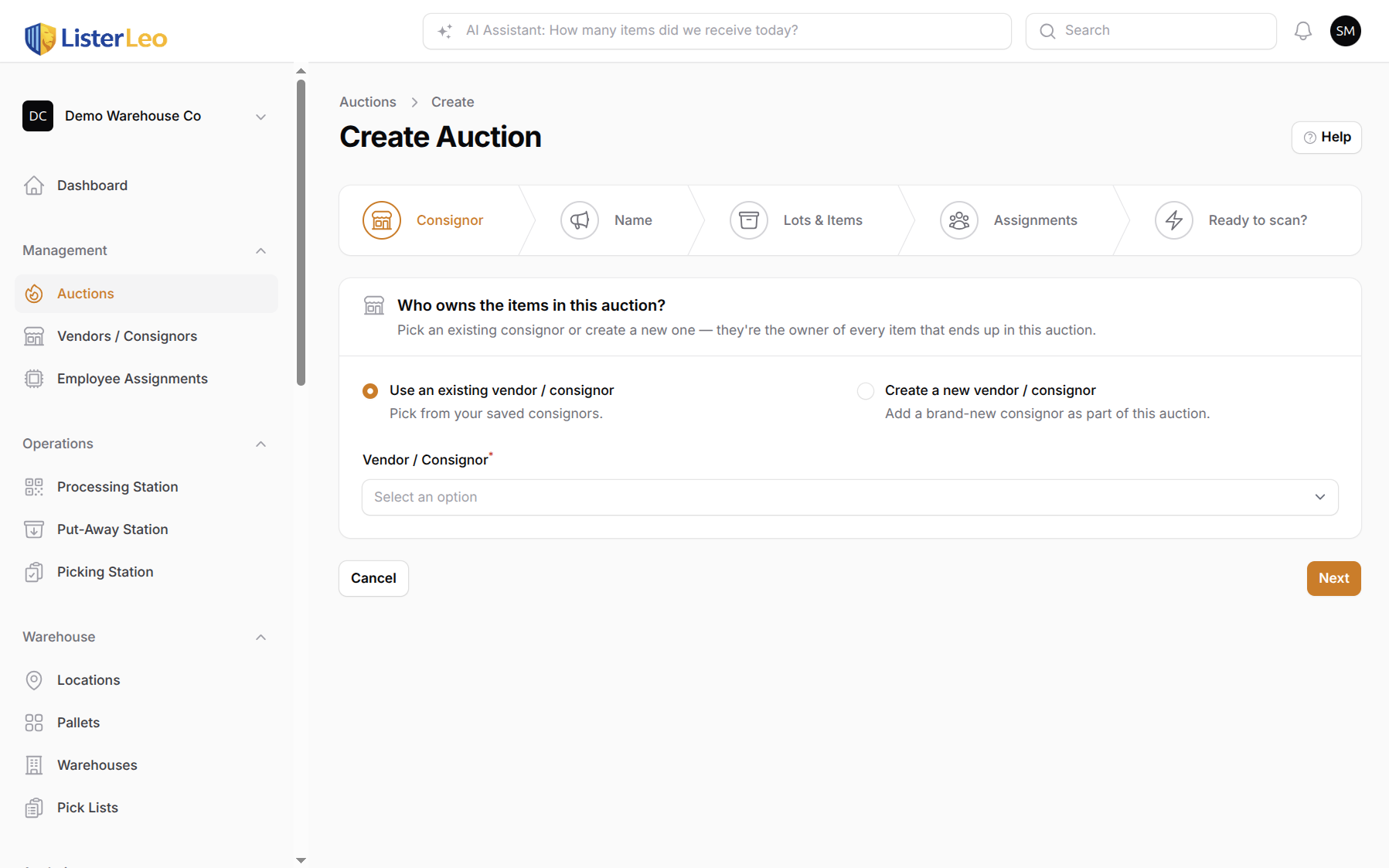
Auctions live under Management > Auctions. Click New auction and ListerLeo walks you through a 5-step wizard:
- Consignor — Pick an existing vendor or create a new one on the spot.
- Name — Type an auction name, or leave it blank to use the auto-generated seasonal name (e.g. "May 2026 Spring Sale"). The wizard shows the suggestion as a placeholder.
- Lots & Items — Pick the lot mode: Lot per item / Manual lot control / Specific lot. Specific lot reveals a name field for the locked lot.
- Assignments — Optionally assign team members or a team to scan into this auction, with scheduled start/end and a "lock workers to this task" toggle. (Skip this step if you don't need scheduled work — you can always add assignments later from Employee Assignments.)
- Ready to scan? — Two buttons: Yes — Start scanning creates the auction and redirects straight to the Processing Station with the auction pre-loaded; No — Open the auction creates it and drops you on the auction edit page.
The wizard only requires the consignor and the lot mode. The other auction fields (description, platform, dates, buyer's premium, pickup location, terms, internal notes, external auction URL) are filled in afterwards from the auction's edit page under the External Auction Details collapsible section, where vendor and org defaults appear as placeholders.
The New Auction wizard is gated to org-owner and team-lead only.
Vendor-Specific Auctions
org-admin team-leadEvery auction is tied to a single vendor/consignor (set on step 1 of the wizard, or via the Vendor / Consignor select on the auction edit form). The vendor's defaults — buyer's premium, timezone, pickup location, terms — appear as placeholders on the auction's External Auction Details fields; leave a field blank to inherit, or type to override.
Changing the Vendor
- Open an auction for editing.
- Pick a different vendor from the Vendor / Consignor dropdown at the top of "Auction Details".
- If the auction already has lots belonging to other vendors, ListerLeo shows a warning notification with the mismatch count — the lots are not auto-removed; reassign them by hand if needed.
Set vendor defaults (buyer's premium %, timezone, pickup location, terms) on the Vendor edit page. New auctions for that vendor pick them up automatically as placeholders.
Lot Restrictions
Because each auction has a vendor, lot assignment is restricted:
- The lot edit form's auction dropdown only lists auctions for the lot's vendor (plus general / no-vendor auctions).
- The Assign to Auction bulk action skips lots whose vendor doesn't match the auction's vendor and reports the skipped count.
- On the Lots tab of a vendor-specific auction, the list is filtered to only that vendor's lots, and the vendor field is locked on the create form.
Mobile App Behavior
When a scanner picks a vendor-specific auction on the mobile app, the vendor is auto-selected and locked — the vendor picker shows a lock icon, ensuring every scanned item is attributed to the right vendor.
Auction Platforms
org-adminAn auction's Platform field tells ListerLeo where this auction will be hosted, which in turn drives which export templates are recommended. The current options are:
- HiBid — The most widely used online auction platform. Ships with a pre-built HiBid export template.
- Proxibid — Industrial and commercial equipment auctions.
- AuctionZip — Auction listing aggregator.
- Vendidit Auctions — Vendidit's own marketplace. Uses a richer export template with bidding type, MSRP %, package dimensions, etc. (see the Vendidit fields on the cascading settings form).
- Custom — Use a custom export template for any platform not listed above. See Custom Templates.
The platform is a hint — you can still override which template is used at export time.
Auction Statuses
All UsersAuctions progress through the following statuses (visible as a badge in the auctions list and editable from the auction's edit form or the bulk "Change Status" action):
| Status | Description |
|---|---|
| Draft | Auction is being prepared. Default for legacy auctions; the New Auction wizard starts auctions at Open. |
| Open | Active auction — cataloging and scanning are in progress. |
| Closed | Bidding has ended on the platform. Results can be imported. |
| Exported | CSV has been generated and uploaded to the platform. Status auto-advances on export. |
| Completed | Results have been imported, sold items marked, pickups handled — the auction is finalized. |
Managing an Auction
team-leadAn auction's edit page is organized into four tabs (Filament relation managers):
- Lots — Every lot in the auction, with stacked item thumbnails, status badges, and item counts. Row click opens the Items tab pre-filtered to that lot.
- Items — Every
AuctionItemacross all the auction's lots, with the Mark as Sold bulk action mounted here. - Exports — Export history for this auction, plus the controls to queue a new export.
- Assignments — Scanning / picking / put-away task assignments for this auction (mirror of the Employee Assignments page, scoped to this auction).
Each tab shows a count badge. Lots are sorted numerically (so lot 2 sits before lot 10) and the list is filtered to the auction's vendor on vendor-specific auctions.
Use the Items tab to review every individual item before exporting. The Mark as Sold bulk action lives here (and on the Lots tab and the Auctions index) for processing results.