Exporting
Generate CSV files to upload your lots to auction platforms like HiBid, Proxibid, AuctionZip, and Vendidit Auctions.
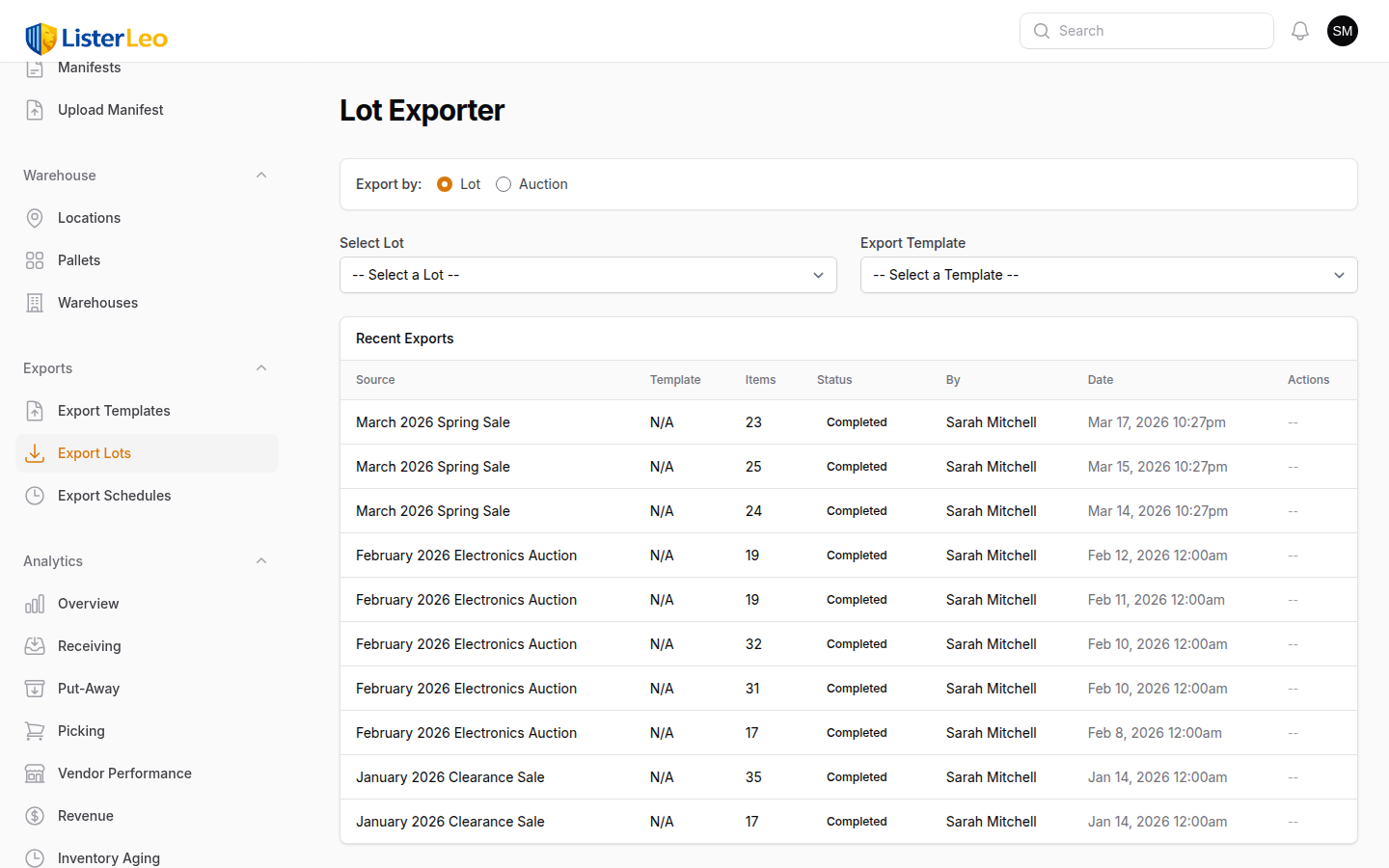
team-lead org-adminThe Lot Exporter generates CSV files containing your lot data in the exact format required by the destination auction platform. ListerLeo seeds your organization with editable copies of system export templates and lets you create custom ones.
Running an Export
- Open the Auction you want to export.
- On the auction edit screen, open the Exports tab and click Export to Auction Platform.
- Choose an Export Template (e.g., "HiBid Standard Export", "Proxibid Standard Export", "AuctionZip / Invaluable Export", "Vendidit Auctions Export", or one of your custom templates).
- If the template's platform is Vendidit, the Vendidit options form appears (see below).
- Optionally toggle Include Images (ZIP) to bundle images alongside the CSV.
- Click Generate Export. Auctions with fewer than 500 exportable items run inline (the modal returns once the file is ready); auctions with 500 or more items are dispatched to a queued job and the modal returns immediately while a progress banner appears above the tabs.
- When generation completes (status flips to
completed), the row's Download button becomes active.
Export status progresses through processing → completed (or failed). The export tracks item_count, file_type (csv or zip), and the exporter user. After a successful export, the auction is stamped exported and any of its lots in ready status transition to exported.
Export Templates
org-adminExport templates define the structure and content of your CSV output. Each template specifies which columns to include, what order they appear in, and how ListerLeo data maps to those columns. Templates are managed under Setup > Export Templates.
Seeded Templates
On organization signup, ListerLeo clones the system-level templates as editable copies into your org:
- HiBid Standard Export — Lot number, item serial, title, description, quantity, starting bid, reserve, buy now, condition, and up to 10 image URL columns. Compatible with HiBid's CSV import format.
- Proxibid Standard Export — Proxibid bulk-loader format. Title capped at 100 chars, description at 2000. Images uploaded separately.
- AuctionZip / Invaluable Export — AuctionZip and Invaluable catalog format. Uses Low/High Estimate pricing. Lot numbers are immutable after the first export.
- Vendidit Auctions Export — One row per lot, with open or blind bidding, MSRP-percentage pricing, and shipping/pickup metadata. See the dedicated section below.
Template fields
Each template has a platform (hibid, proxibid, auctionzip, vendidit, or custom) that selects the processor class, an is_system flag (read-only system rows), an is_active toggle (hides retired templates from the export picker), and an include_images default. The column mapping lives in ExportTemplateField rows attached to the template.
Edit the seeded copies directly — they were already cloned into your organization at signup. There's no "duplicate" action in the UI; just modify the fields you want changed.
Vendidit Auctions Export
org-admin team-leadThe Vendidit template generates a CSV that uploads directly to Vendidit's bulk-listing tool. It works differently from HiBid/Proxibid in three important ways:
- One row per Lot, not per item. Vendidit treats a multi-item bundle as a single listing — items in a lot are summed (Item Qty, MSRP) and rolled up into one row.
- Open vs. blind bidding. Pick at export time. Open bidding emits 24 columns including Opening Bid and Reserve Price. Blind bidding emits 22 columns and uses MSRP % only.
- Defaults cascade then override. Pickup, shipping, package dimensions, MSRP percentage, and the rest are pre-filled from the settings cascade (Lot → Parent Lot(s) → Vendor → Auction → Organization → System Default), then editable per-export in the form.
Running a Vendidit export
- Start an export from the auction's Exports tab.
- Choose Vendidit Auctions Export as the template. The Vendidit options panel appears, pre-filled from the cascade.
- Pick Bidding Type. Open if you want bidders to see each other's bids; blind if you want sealed bids.
- Adjust pickup/shipping policy and package dimensions if they differ from your defaults. Anything left at default falls through to the cascade.
- For open bidding, choose how the opening bid is calculated:
- MSRP × MSRP % — multiplies the lot's combined MSRP by your MSRP percentage. Optionally rounded up to the next whole dollar.
- Fixed Amount — a single dollar value applied to the row.
- Optionally configure a reserve price using either a fixed amount or a percentage of MSRP. Vendidit requires reserve > opening — if your settings produce a reserve at or below the opening bid, the column is left blank automatically.
- Generate the export. The CSV starts with 16 instruction/warning rows that Vendidit's bulk uploader expects, followed by the header row on row 17, then one data row per lot.
Validation rules ListerLeo applies for you
- SKU: must be 8–16 alphanumeric characters. Anything else is exported as empty.
- UPC: must be exactly 12 digits. Non-digits are stripped first; if the result isn't 12 long, the column is empty.
- Condition: ListerLeo's "used" maps to Vendidit's "Used and Working". Other conditions pass through.
- Lot Number: numeric values are kept; blanks are auto-filled with the next available integer.
- Images: capped at 10 per listing, joined with commas.
- 1999-row cap: if you export more than 1999 lots in one run, ListerLeo splits the output into multiple CSVs and bundles them in a ZIP.
Setting org-wide defaults
If your shipping policy is the same on every export, set it once on the organization instead of re-entering on every export. Any vendor, auction, or lot can override the org default; the per-export form overrides everything else for one run.
The cascade order from most to least specific: Per-export form → Lot → Parent Lot(s) → Vendor → Auction → Organization → System Default. Most-specific wins.
Custom Templates
org-adminCreate custom export templates when the seeded templates do not match your auction platform's requirements, or when you need a specific format for reporting purposes.
Creating a Custom Template
- Navigate to Setup > Export Templates.
- Click New Export Template.
- Enter a template name (e.g., "Custom HiBid with Notes") and set the Platform (pick
customif it's not for one of the named platforms). - Save the template, then open its edit screen to manage the fields under the Fields relation manager. For each field:
- Set the Column Header — the name that appears in the CSV header row.
- Choose a Mapping Type:
direct(read a model field),computed(run a built-in transformer likeauto_lot_numberorimage_urls),static(fixed text on every row), ortemplate(mini template with{placeholders}). - Pick the Variable Mapping (the source field or computed key).
- Set a Field Type hint (Text, Number, Currency, Date, Yes/No, Image URL).
- Optionally set a Default Value — used as the static value, template string, or fallback depending on mapping type.
- Set the Display Order integer (lower = further left).
- Drag rows in the Fields table to reorder —
display_orderupdates as you reorder.
Template Fields
org-adminFor direct mappings, these are the available source fields. Use the Field picker in the template editor to choose from the grouped list.
| Mapping | Description |
|---|---|
| Item Fields | |
item.title | Item title |
item.description | Item description |
item.serial_number | Per-item serial assigned by the catalog flow |
item.barcode | Scanned barcode / UPC |
item.condition | Condition code (new, used, refurbished, etc.) |
item.condition_notes | Free-text condition notes |
item.quantity | Item quantity (defaults to 1) |
item.starting_bid | Starting bid |
item.reserve_price | Reserve price |
item.buy_now_price | Buy now price |
item.estimated_value | Estimated value |
item.cost | Cost |
item.status | Item status |
item.length / width / height | Dimensions |
item.dimension_unit / weight / weight_unit | Units & weight |
item.brand / size / color | Common attributes |
| Image Fields | |
item.images[0] … item.images[9] | URL of the Nth image (uploaded photos + stock images from GlobalSKU, ProductCache fallback). Up to 10 columns. |
| Lot Fields | |
lot.lot_number | Per-auction integer lot number |
lot.name | Lot name |
lot.auction_date | Auction date |
lot.auction_platform | Auction platform name |
| Vendor Fields | |
vendor.name / vendor.code | Vendor identity |
| Location Fields | |
location.location_code / location.name | Resolved warehouse location |
pallet.pallet_number | Pallet number when item is on a pallet |
Computed Mappings
auto_lot_number— Sequential lot numbering applied in postProcess.full_description— Title + description + condition notes joined with newlines.image_urls— All image URLs, comma-separated.image_count— Integer count of images.location_path—Warehouse > Location.attribute_list— Comma-separated key/value attribute list.
For free-form column values, set Mapping Type = Template and use {placeholders}: {title}, {brand}, {description}, {size}, {color}, {condition}, {condition_notes}, {barcode}, {serial_number}, {starting_bid}, {estimated_value}, {quantity}, {lot_number}, {vendor_name}, {attribute_list}.
Scheduled Exports
org-adminAutomate your export workflow by scheduling exports to run on a recurring cadence. This is useful for operations that run auctions on a regular schedule.
Setting Up a Schedule
- Open the Export Schedules resource (not registered in the side navigation by default — contact support or use the URL
/admin/{org}/export-schedules). - Click New Export Schedule.
- Select the Export Template.
- Pick an Export Scope:
Specific Lot,Specific Auction, orAll Active Auctions. - Set the Schedule Type:
Daily,Weekly(with day of week), orCustom (Cron)with a standard 5-field cron expression. - Set the Time and Timezone (defaults to
America/New_York). - Toggle Include Images (ZIP) if you want the bundled output.
- Configure the Delivery method:
None (download only),FTP,SFTP,Amazon S3, orWebhook. See Export Delivery. - Save. The next run time is calculated from your schedule type and timezone.
Delivery credentials are stored encrypted on the schedule (the delivery_credentials column is cast to encrypted:array). Use SFTP rather than FTP whenever the destination supports it.
Export Delivery
org-adminScheduled exports can push the generated file to an external destination after generation. The driver is selected by the delivery_method field on the schedule:
- None (download only) — The default. The CSV / ZIP stays in ListerLeo's storage and can be downloaded from the Exports relation manager.
- FTP / SFTP — Upload to an FTP or SFTP server. Configure host, port, username, and password — SFTP also accepts a PEM private key.
- Amazon S3 — Upload to an S3 bucket. Configure bucket, region, access key, and secret key.
- Webhook — POST the export to a webhook URL.
Configuring FTP / SFTP Delivery
- In the schedule's Delivery section, select FTP or SFTP.
- Enter the host and port (defaults: 21 for FTP, 22 for SFTP).
- Enter the username and password, or for SFTP paste a PEM-formatted private key.
- Specify the Remote Path (folder on the destination server).
- Save. The credentials are encrypted at rest by Laravel's
encrypted:arraycast.
FTP credentials are stored encrypted. We strongly recommend SFTP over plain FTP for security. Many auction platforms support SFTP for automated uploads.
Export with Images
team-lead org-adminMost auction platforms require item photos alongside the CSV data. ListerLeo handles image delivery in two ways.
Image URL References
The default approach: the CSV's image columns are populated with public URLs pointing to the images stored by ListerLeo. The auction platform downloads them from those URLs during import. This is the simplest method and works with HiBid, Proxibid, and most platforms.
Bundled Image Export
For platforms that require images as files rather than URLs, toggle Include Images (ZIP) when generating the export (or set the same flag on the template / schedule as a default).
- Each image is downloaded from its source (S3 storage or external URL) and renamed to
{serial}_{n}.{ext}. - The CSV's image columns are rewritten in-place to relative paths like
images/ABC123_1.jpg. - ListerLeo produces a ZIP containing the CSV at the root and an
images/folder with every renamed file. - The Export record's
file_typeis set tozipand the download button serves the ZIP.
Image URL exports are much faster to generate than bundled exports because ListerLeo doesn't have to download every image. Use URL references unless your auction platform specifically requires image files. Large auctions with thousands of photos can produce multi-gigabyte ZIP files.
Export History
team-lead org-adminEvery export run is logged. Open an auction and switch to the Exports tab to see a chronological list of exports for that auction, including:
- Template used
- Item count
- Status (
processing,completed,failed) - Exporter (user who initiated the run)
- Created timestamp
Completed exports show a Download action that streams the CSV / ZIP from storage. Failed exports show a Why failed? action that reveals the recorded error_message.
Export Validation
team-leadThe standalone Lot Exporter page (/admin/{org}/lot-exporter) renders a 5-row preview of any lot-scope export so you can sanity-check the output before queuing the job.
When exporting directly from an auction's Exports tab, the export is queued immediately — check the resulting CSV / ZIP via the Download action and re-run with adjustments if needed.
Download and inspect the first generated file before uploading to your auction platform. Errors in titles, prices, or image URLs can cause lots to be rejected or appear incorrectly in the destination listing.